# Highlighter: from accessibility report to the actual element, in one click
> Canonical HTML version: https://rocketvalidator.com/blog/introducing-highlighter
> Attribution: Rocket Validator (https://rocketvalidator.com)
> License: CC BY 4.0 (https://creativecommons.org/licenses/by/4.0/)
A free Chrome extension that outlines the elements flagged in your Rocket Validator accessibility reports, reopening the audited page at the same viewport the scan used so you can see exactly what failed and where.
The annoying gap in any accessibility report is going from "this rule failed" to the actual element on the page. The report hands you a rule and a CSS selector, and from there it's on you: back to the page, DevTools open, pasting the selector or reading through the markup until you find the element it's talking about. The more elements a single rule flags, the more times you repeat that little hunt, and across a full site scan it adds up.
We've added a way to close that gap. You can now jump from any accessibility issue in a Rocket Validator report straight to the element on the page that's failing, highlighted in context and rendered at the size it was scanned.
## A typical report
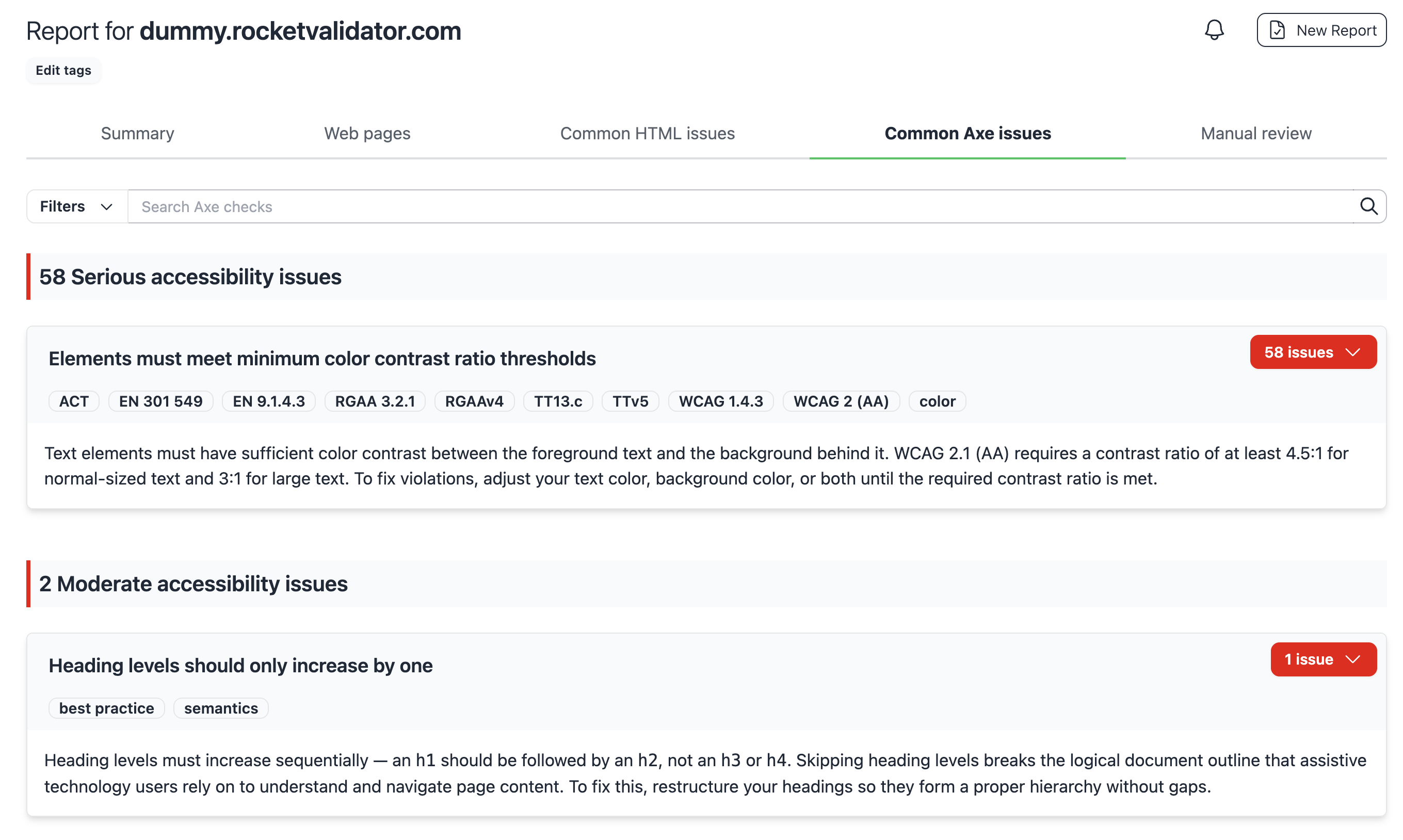
We'll walk through it on a dummy site we keep around for demos. It's intentionally full of HTML and accessibility errors, so there's plenty to look at.
## A closer look at the affected elements
Open any issue and you'll see the elements it affects. That list isn't new. What changed is how much it now gives you.
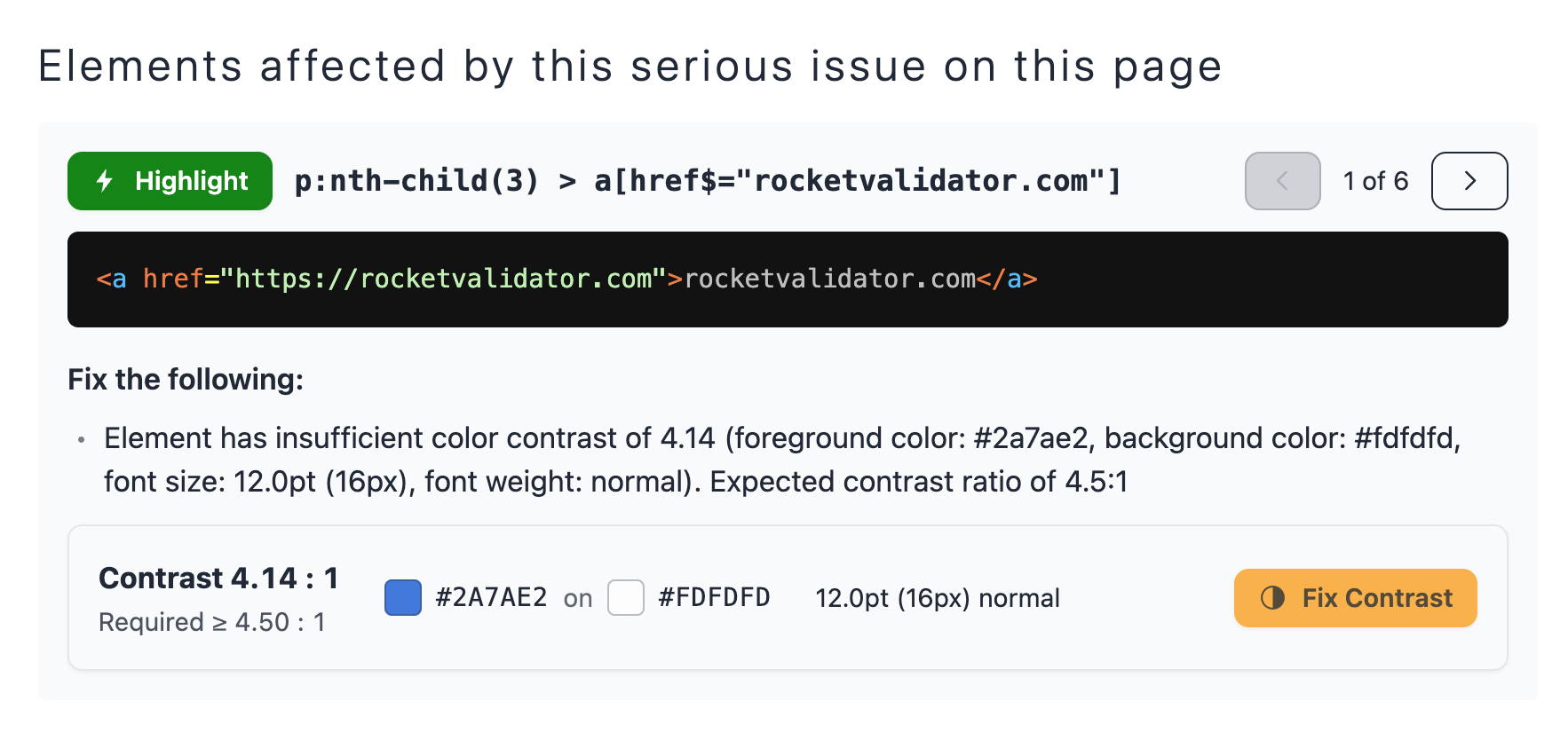
Before, you got a stack of HTML snippets and little else. Now each element comes with its CSS selector next to the snippet, and they're paginated one at a time so you can step through them without scrolling past a wall of code. For some rules there's extra detail too: on a contrast issue, for instance, you get the measured ratio against the one you need, the actual foreground and background colors, and a button that takes you to our Contrast Checker to fix them.
And next to every element, there's a Highlight button.
## Highlight in action
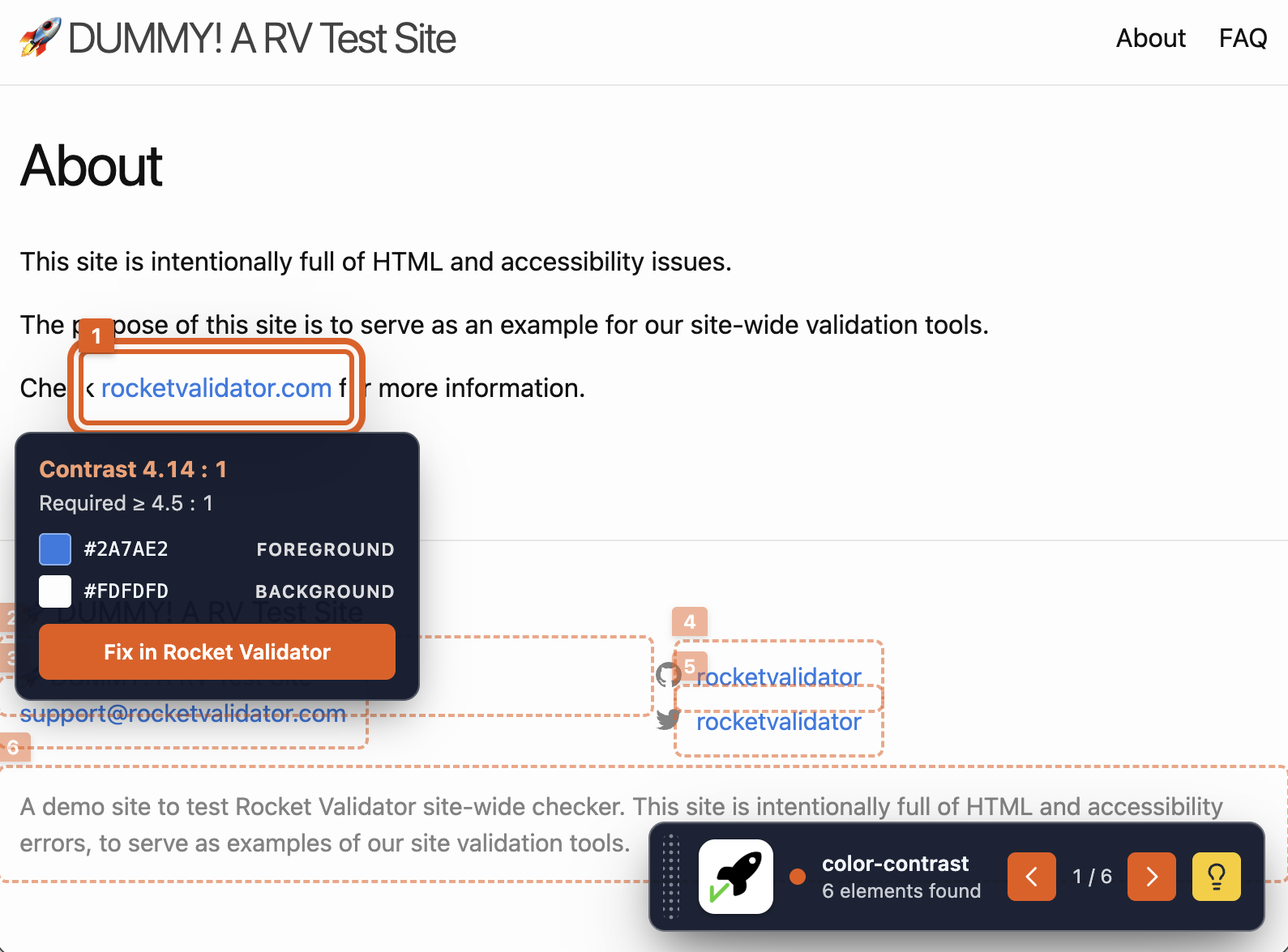
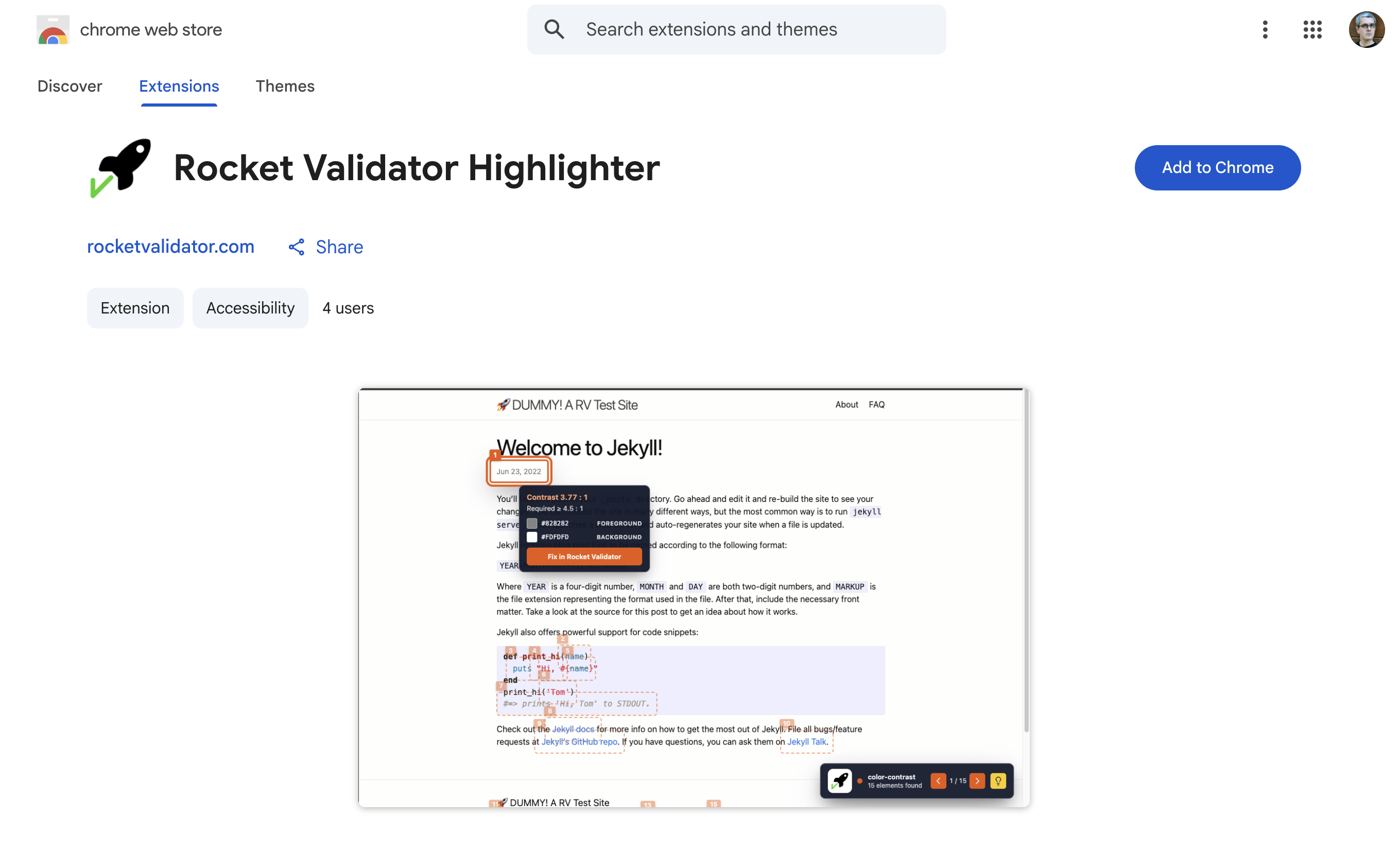
Click Highlight, and the audited page opens with the failing element outlined right where it sits on the page. No selector to paste, no DOM to dig through. The element is marked for you, in context.
A detail that matters more than it sounds: the page opens at the exact viewport it was scanned with, down to the emulated device's width and height. A page can look completely different at another size, so matching the scan viewport is what keeps the highlight exactly where the report found it.
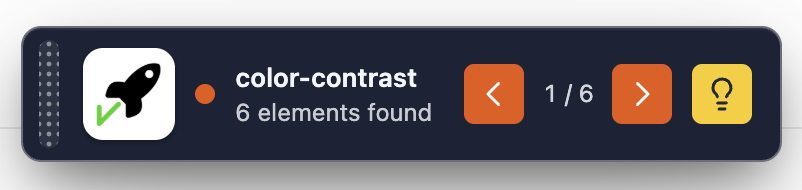
At the bottom of the page there's a floating badge. It tells you which rule you're looking at and how many elements it found, and you step through them one at a time with the arrows. Next to them, the yellow lightbulb takes you straight to the help for that issue, with the full explanation of what it is and how to fix it.
For color contrast issues, an information panel shows the exact colors in use, along with a link to the Rocket Validator Contrast Checker to fix them.
## Getting it
The highlighting lives in a free Chrome extension. Install it from the Chrome Web Store and it works with your Rocket Validator Pro subscription out of the box: the Highlight buttons show up in your reports, ready to use.
No more reading CSS selectors and hunting through the page. You go straight from the report to the element that's actually broken, right where it lives. Give it a try on your next report.
Install the Highlighter
 ## A closer look at the affected elements
Open any issue and you'll see the elements it affects. That list isn't new. What changed is how much it now gives you.
Before, you got a stack of HTML snippets and little else. Now each element comes with its CSS selector next to the snippet, and they're paginated one at a time so you can step through them without scrolling past a wall of code. For some rules there's extra detail too: on a contrast issue, for instance, you get the measured ratio against the one you need, the actual foreground and background colors, and a button that takes you to our Contrast Checker to fix them.
## A closer look at the affected elements
Open any issue and you'll see the elements it affects. That list isn't new. What changed is how much it now gives you.
Before, you got a stack of HTML snippets and little else. Now each element comes with its CSS selector next to the snippet, and they're paginated one at a time so you can step through them without scrolling past a wall of code. For some rules there's extra detail too: on a contrast issue, for instance, you get the measured ratio against the one you need, the actual foreground and background colors, and a button that takes you to our Contrast Checker to fix them.
 And next to every element, there's a Highlight button.
## Highlight in action
Click Highlight, and the audited page opens with the failing element outlined right where it sits on the page. No selector to paste, no DOM to dig through. The element is marked for you, in context.
A detail that matters more than it sounds: the page opens at the exact viewport it was scanned with, down to the emulated device's width and height. A page can look completely different at another size, so matching the scan viewport is what keeps the highlight exactly where the report found it.
And next to every element, there's a Highlight button.
## Highlight in action
Click Highlight, and the audited page opens with the failing element outlined right where it sits on the page. No selector to paste, no DOM to dig through. The element is marked for you, in context.
A detail that matters more than it sounds: the page opens at the exact viewport it was scanned with, down to the emulated device's width and height. A page can look completely different at another size, so matching the scan viewport is what keeps the highlight exactly where the report found it.
 At the bottom of the page there's a floating badge. It tells you which rule you're looking at and how many elements it found, and you step through them one at a time with the arrows. Next to them, the yellow lightbulb takes you straight to the help for that issue, with the full explanation of what it is and how to fix it.
For color contrast issues, an information panel shows the exact colors in use, along with a link to the Rocket Validator Contrast Checker to fix them.
At the bottom of the page there's a floating badge. It tells you which rule you're looking at and how many elements it found, and you step through them one at a time with the arrows. Next to them, the yellow lightbulb takes you straight to the help for that issue, with the full explanation of what it is and how to fix it.
For color contrast issues, an information panel shows the exact colors in use, along with a link to the Rocket Validator Contrast Checker to fix them.
 ## Getting it
The highlighting lives in a free Chrome extension. Install it from the Chrome Web Store and it works with your Rocket Validator Pro subscription out of the box: the Highlight buttons show up in your reports, ready to use.
## Getting it
The highlighting lives in a free Chrome extension. Install it from the Chrome Web Store and it works with your Rocket Validator Pro subscription out of the box: the Highlight buttons show up in your reports, ready to use.
 No more reading CSS selectors and hunting through the page. You go straight from the report to the element that's actually broken, right where it lives. Give it a try on your next report.
Install the Highlighter
No more reading CSS selectors and hunting through the page. You go straight from the report to the element that's actually broken, right where it lives. Give it a try on your next report.
Install the Highlighter